
Client Introduction
Quantumult X
Quantumult X is a feature-rich iOS proxy client. This guide focuses on adding node resources, enabling proxy on the main screen, and switching operating modes.
Get subscription
Copy the subscription URL from your provider.
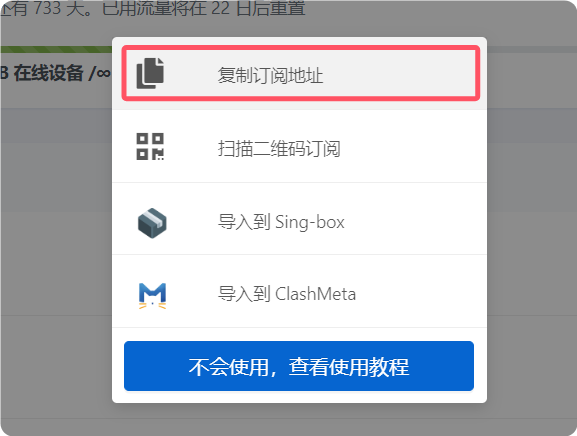
Add subscription
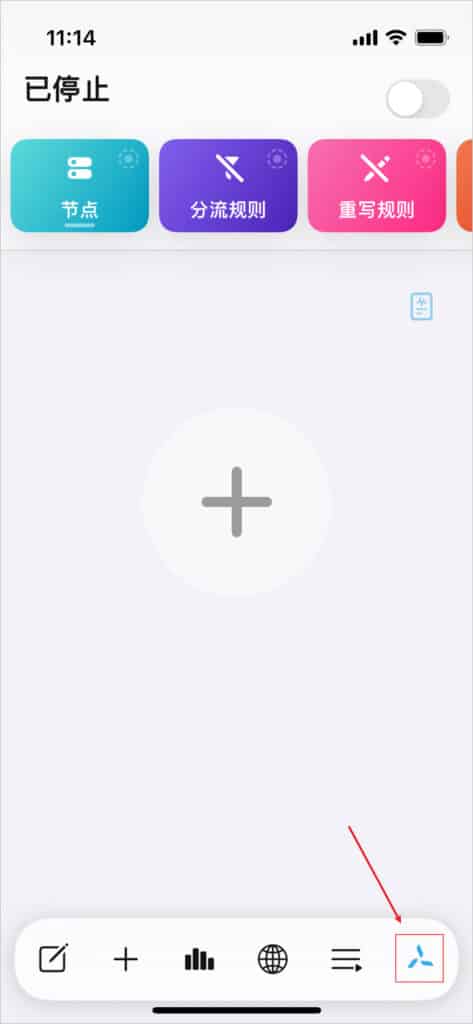
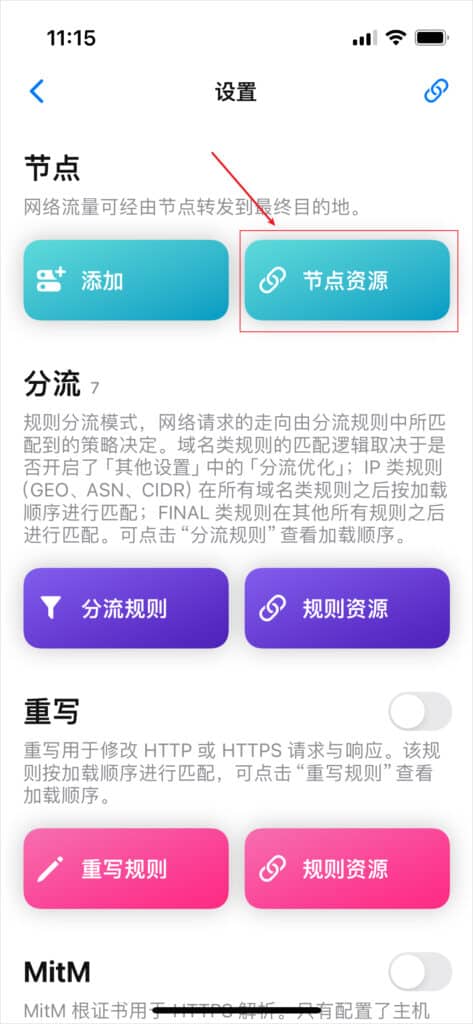
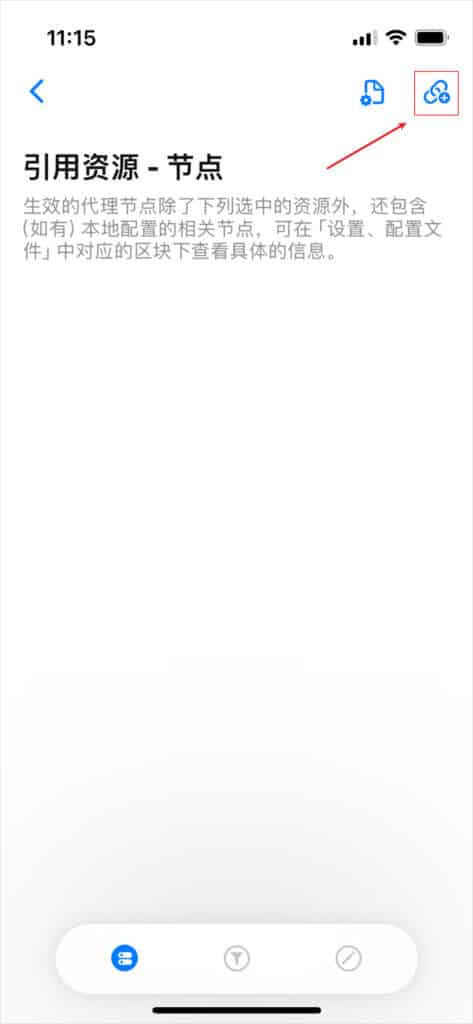
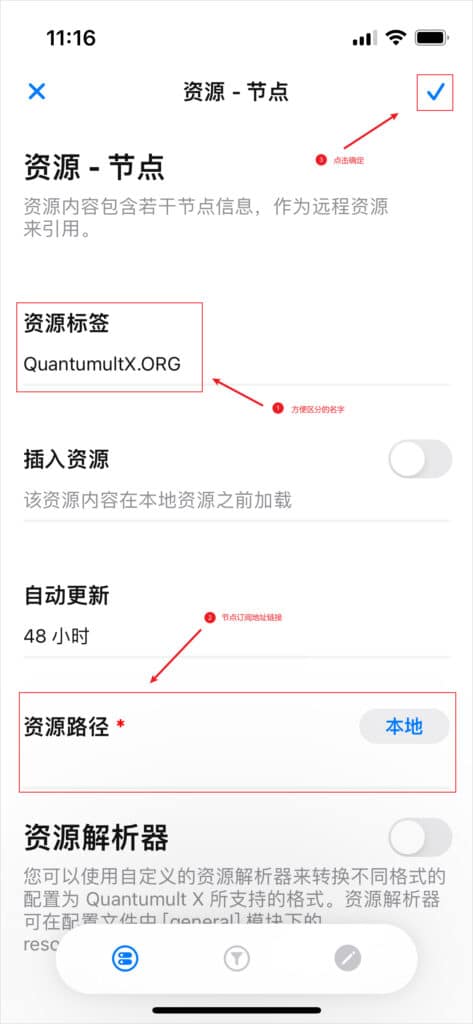
On the main screen, tap the pinwheel icon in the lower-right corner to open Settings. Tap Node Resources, then the add icon in the upper-right corner. Enter a recognizable resource tag, paste the subscription URL into the resource path, and tap the checkmark to save.
Enable proxy
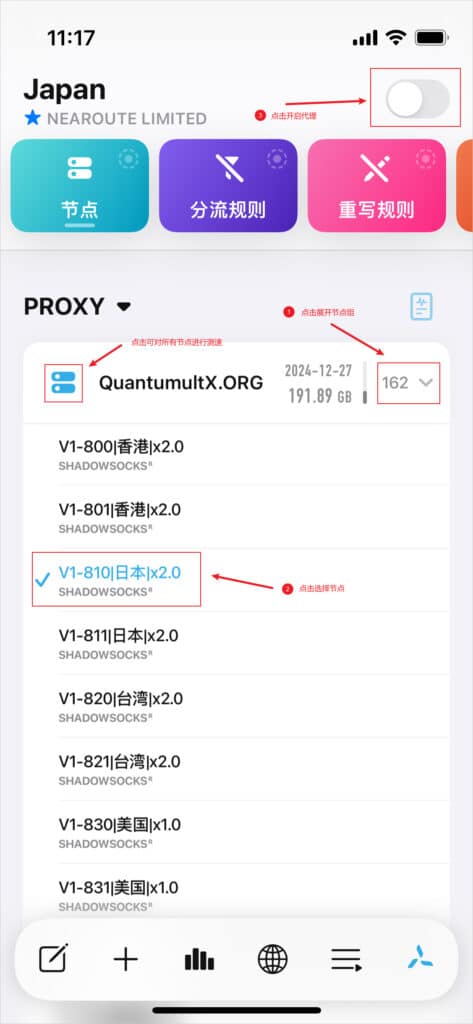
Return to the main screen, select one of the newly added nodes, then tap the upper-right button to enable proxy.
Operating mode notes
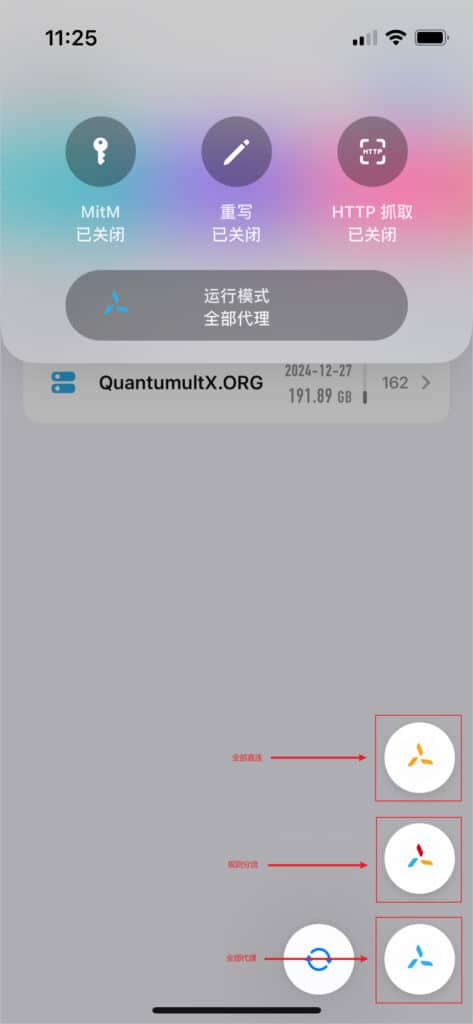
The reference explains that the default operating mode is All Proxy, with Rule Routing and All Direct also available. Long-press the lower-right pinwheel icon to switch modes.
- All Proxy: route all requests through the node specified by the built-in PROXY policy.
- Rule Routing: decide request routing by rules and policies.
- All Direct: send all requests directly to destinations.