

Client Introduction
Mihomo Party
Mihomo Party focuses on subscription and proxy-group management, includes an interactive guide, and helps users import profiles and enable system proxy quickly.
Interactive guide
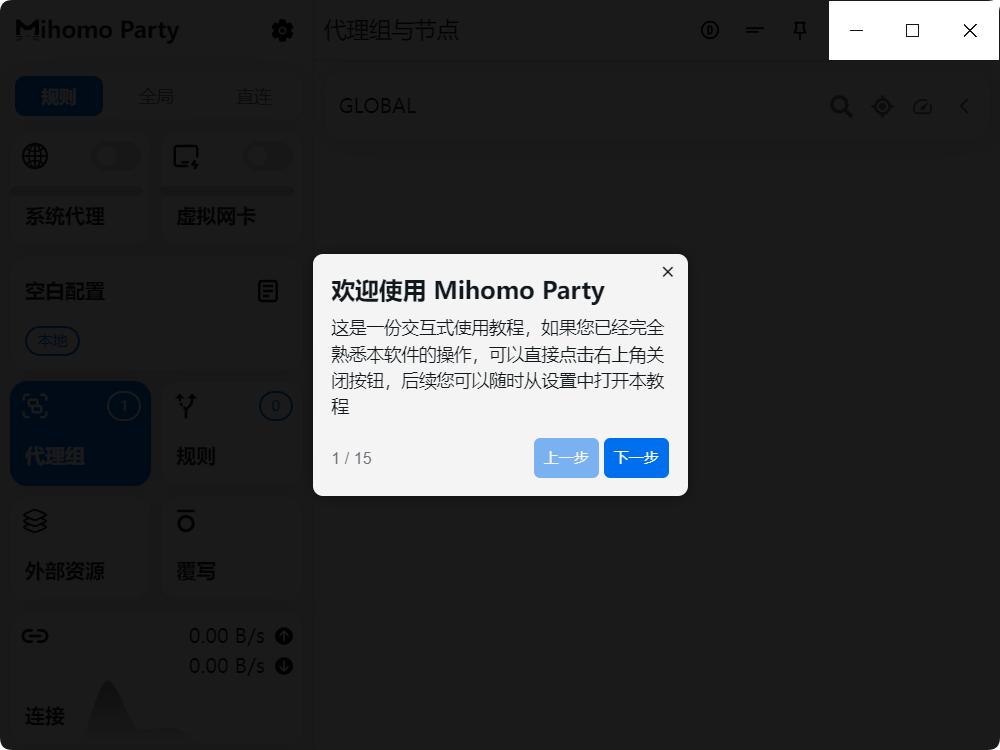
When Mihomo Party starts, it provides a built-in interactive guide. Use Next to review the basic flow.
Get subscription
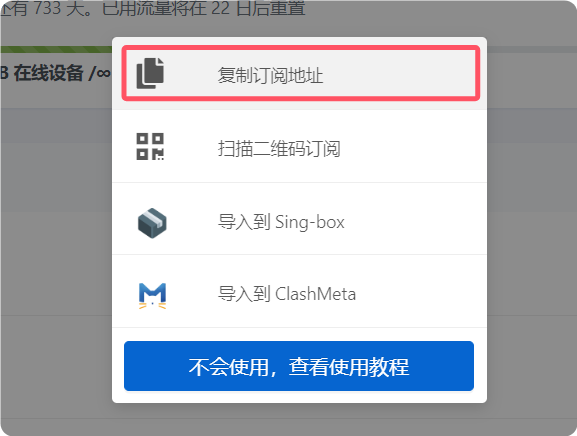
Copy the subscription URL from your provider. URL import is the main flow used in the reference.
Add subscription
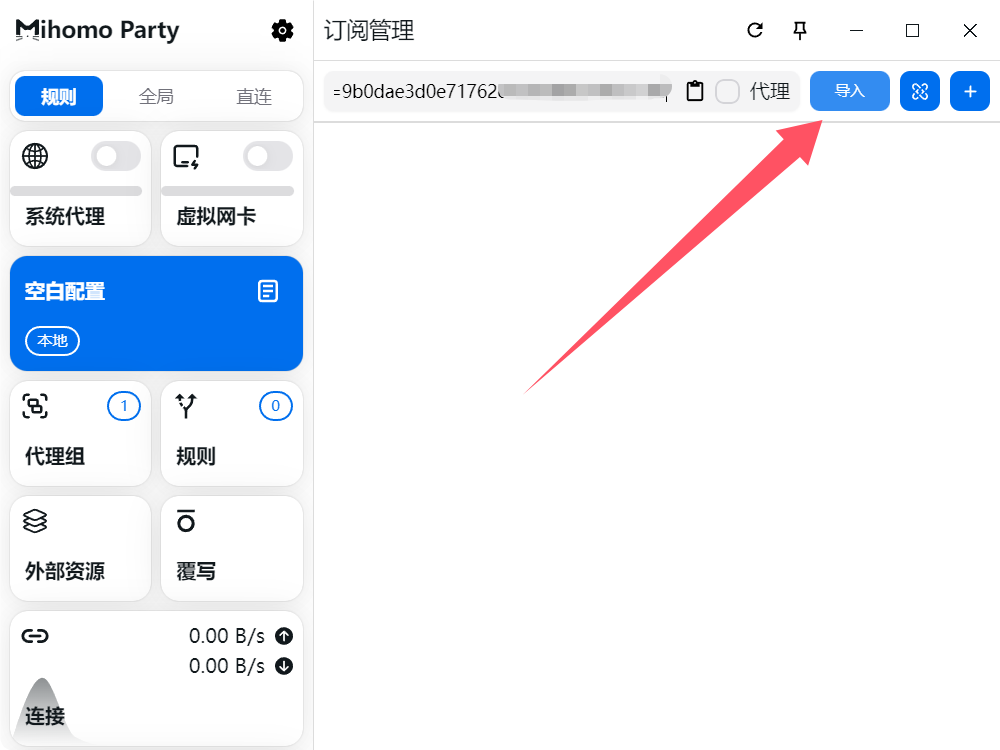
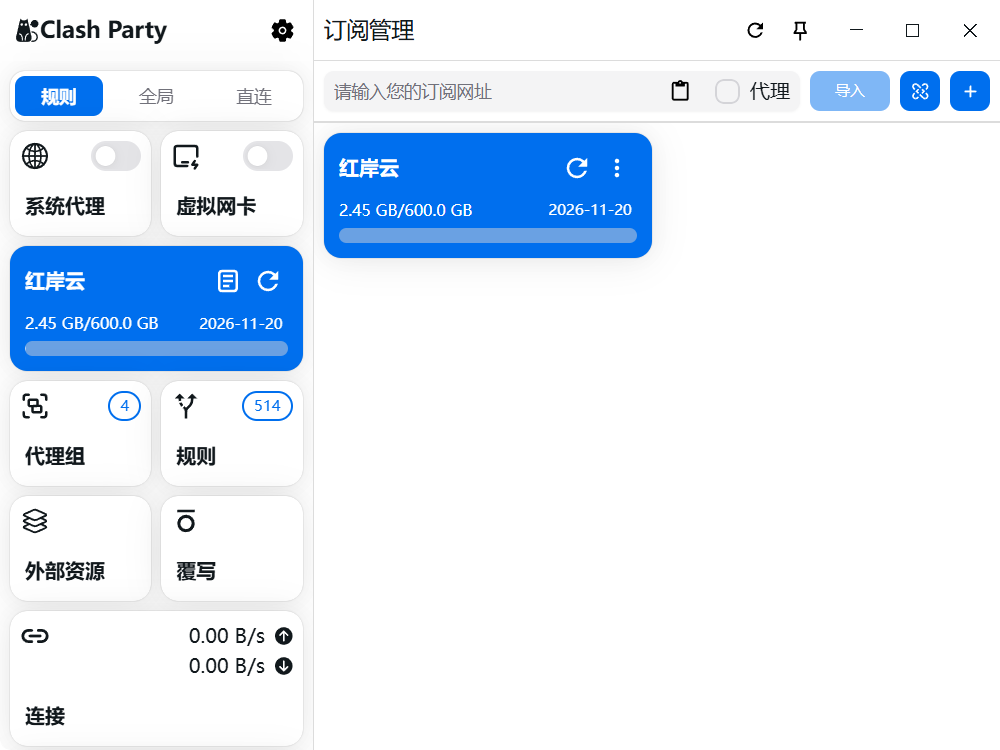
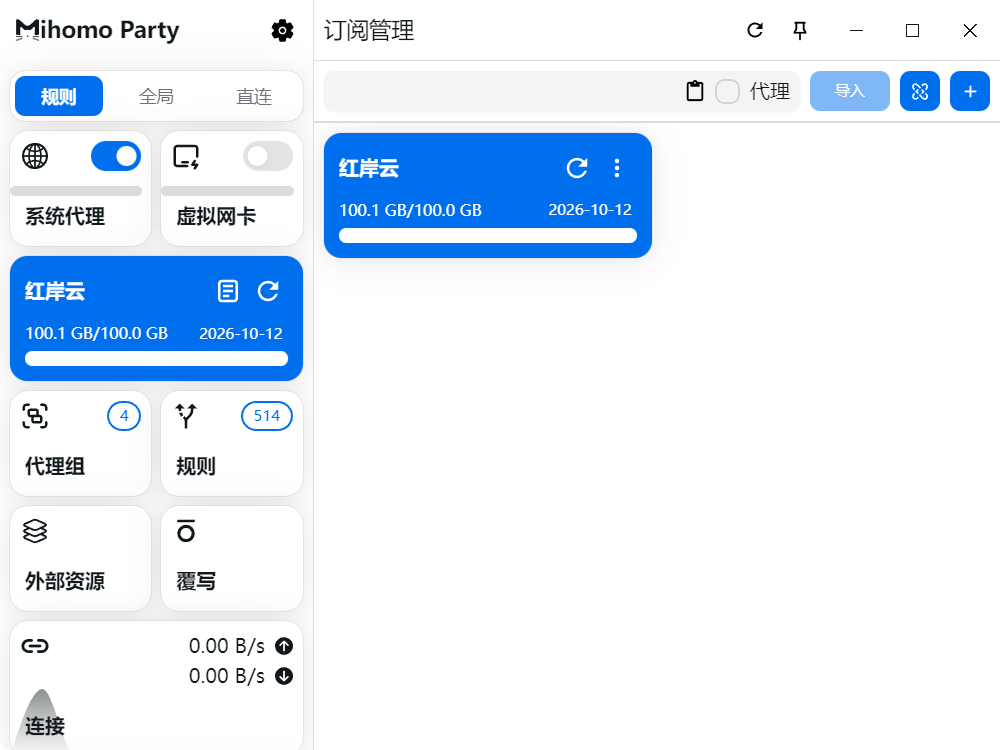
Click Blank Profile on the left, paste the copied subscription URL, and click Import. The subscription list appears after a successful import.
Enable system proxy
Turn on System Proxy from the left side. Traffic will be routed through the active Mihomo Party profile.
Switch nodes and policy groups
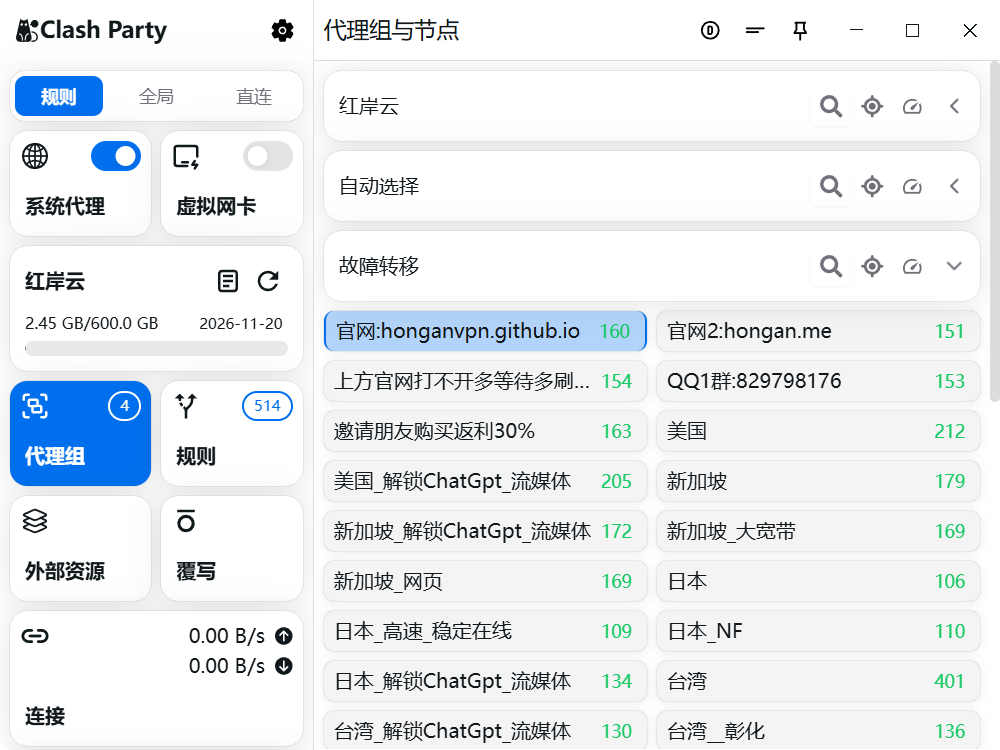
After importing the subscription, open Proxy Groups on the left to view nodes and groups. Click a node under a policy group to switch.
Outbound mode notes
The reference lists Rule, Global, and Direct outbound modes. Rule is generally recommended.
- Rule: decide proxy or direct by rules.
- Global: route all traffic through proxy.
- Direct: bypass proxy for all traffic.